
LTC & MTC Control
Callie Grams can trigger clips from an external timecode source. This is useful for synchronising sound effects, music cues, or stings with a show clock, video server, or lighting console.
Timecode Source Setup
Section titled “Timecode Source Setup”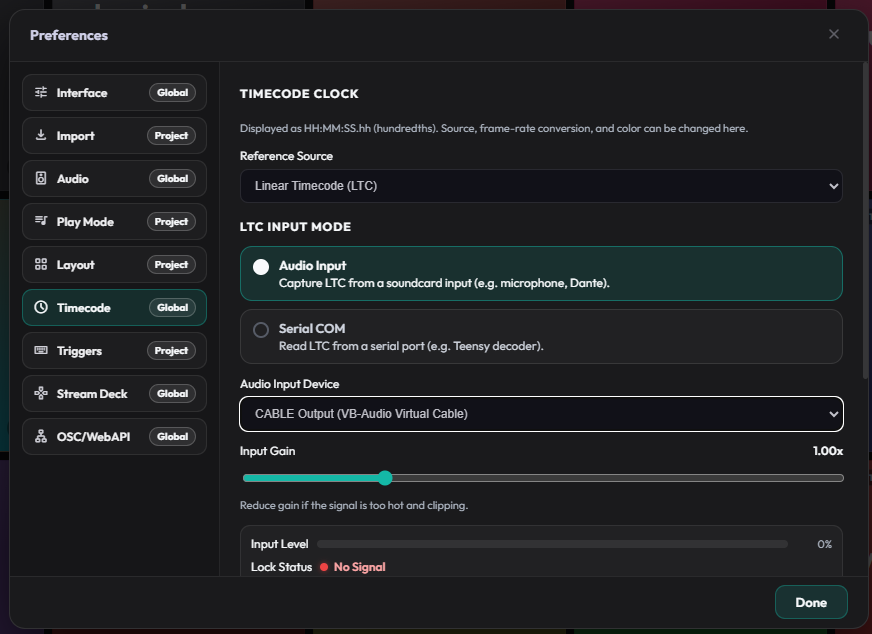
Configure the source in Preferences → Timecode:
- Reference Source — choose System Clock, MIDI Timecode (MTC), or Linear Timecode (LTC).
- Frame Rate — match your external source (for example 24, 25, 29.97, or 30 fps).
- Offset — shift the incoming timecode in hundredths of a second.
- Fallback to system clock — use the computer clock if the external source disappears.
- Clock Color — change the color of the system timecode display in the header.
LTC Audio Input
Section titled “LTC Audio Input”For LTC:
- Connect an LTC source to an audio input on your computer (or to a Dante channel).
- In Preferences → Timecode, set Reference Source to Linear Timecode (LTC).
- Under LTC Input Mode, choose Audio Input.
- Select the input device.
- Adjust Input Gain if the meter is too low or clipping.
Callie Grams shows the input level and lock status while LTC is selected.
LTC Serial Input
Section titled “LTC Serial Input”If you are using a serial LTC decoder (for example a Fetch Hachi):
- In Preferences → Timecode, set Reference Source to Linear Timecode (LTC).
- Under LTC Input Mode, choose Serial COM.
- Select the serial port.
MTC Input
Section titled “MTC Input”For MTC:
- Connect a MIDI device that generates MTC.
- In Preferences → Timecode, set Reference Source to MIDI Timecode (MTC).
- Select the MIDI port.
System Clock
Section titled “System Clock”With System Clock selected, Callie Grams uses the computer’s local time of day. This is useful for scheduled playback without external hardware.
Timecode Triggers
Section titled “Timecode Triggers”Set per-clip triggers in Clip Settings → Triggers:
- Click + Add Timecode Trigger.
- Set the Time at which the clip should fire.
- Optionally set a Repeat interval and an Until time.
- Enable or disable the trigger with the checkbox.
Each trigger fires the clip at the specified time of day. Leave Until blank to repeat indefinitely.
- Match the frame rate exactly to your source; mismatched rates cause drift.
- Use the offset to compensate for processing delay.
- For LTC audio input, make sure the input is not muted in the OS and is reaching Callie Grams at a healthy level.