
Working with Audio Sources
Audio sources are the channels you’re routing to video. Think of them as your inputs.
Audio Source Types
Section titled “Audio Source Types”Nipper supports six audio source types - covering most of what you’ll encounter in broadcast and recording facilities:
- MADI — Multi-channel Audio Digital Interface (up to 64 channels per group)
- Dante — Digital Audio Network Through Ethernet (64 channels per group)
- Waves — Waves audio networking protocol (128 channels per group)
- Milan (AVB) — Media over IP standard (128 channels per group)
- AES — Audio Engineering Society digital audio (stereo pairs)
- Embedded — Audio already embedded in incoming video (flexible group sizes: 2, 4, 8, 16, 32 channels)
Each type appears in a separate section in the left panel.
Adding MADI Channels
Section titled “Adding MADI Channels”MADI offers two numbering schemes:
Paired Mode:
Channels labelled as stereo pairs: 1.01 L/R, 1.02 L/R, …, 1.32 L/R (64 channels total).
Common in facilities treating channels as left/right pairs.
Sequential Mode:
Channels numbered individually: 1.01, 1.02, …, 1.64.
Preferred when not all channels form stereo pairs.
To add MADI channels:
Add → MADI
You can add a single channel (you choose the numbering), add a pair (L/R), add a full MADI 64 in paired mode (bulk adds 32 pairs), or add a full MADI 64 in sequential mode (bulk adds 64 sequential channels).
The group number (major number like “1” in 1.01) organizes channels.
All channels with the same group number appear together.
Editing MADI channels:
You can edit the label to change the displayed text, add a description that shows in exports and tooltips, change the group number to move it to a different MADI group, ignore it to exclude from Routing Check (which adds a visual indicator), or delete it entirely to remove it from the configuration.
Adding Dante, Waves, and Milan Channels
Section titled “Adding Dante, Waves, and Milan Channels”Similar to MADI but no paired/sequential distinction.
Add → [Dante/Waves/Milan]
Dante supports 64 channels per group with sequential numbering from 1.01 through 1.64.
Waves supports 128 channels per group, numbered sequentially from 1.001 through 1.128.
Milan (AVB) also supports 128 channels per group, numbered 1.001 through 1.128.
Bulk operations are available for each type, so you can add a full group at once.
Adding AES Channels
Section titled “Adding AES Channels”AES channels always come in stereo pairs (L/R).
You can add a single pair (one L/R pair) or add multiple pairs (specify the quantity in the dialog).
AES pairs numbered: 1.01 L/R, 1.02 L/R, etc.
Adding Embedded Audio Channels
Section titled “Adding Embedded Audio Channels”Embedded audio represents channels already present in incoming video sources.
You can add a group and choose the group size: 2, 4, 8, 16, or 32 channels.
Embedded groups numbered: 1.01, 1.02, etc. within their group.
Useful when routing through an existing video signal that already carries audio.
Channel Descriptions
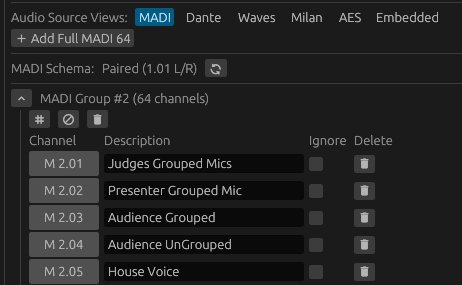
Section titled “Channel Descriptions”All audio channels support descriptions.
Adding a description:
Click the description button for the channel and enter your descriptive text.
When to use descriptions: They’re great for identifying sources (“Camera 1 Mic”), specifying purpose (“Commentator Feed”), or noting equipment details (“Lavalier on Host A”).
Descriptions appear in tooltips when you hover over buttons, in Matrix View, in all export formats, and on Buzz Out verification screens.
Ignoring Channels
Section titled “Ignoring Channels”Ignored channels are excluded from Routing Check.
To ignore:
Click the ignore button to toggle ignore state (click again to unignore).
What ignoring does: Ignored channels get a visual indicator (red label) and are excluded from Routing Check “unassigned” warnings. If an ignored channel already has assignments, those still show but generate a warning. Ignored sources are omitted from the Buzz Out verification workflow.
Use ignoring for broken equipment that’s temporarily unavailable, channels reserved for future use, or spare capacity you don’t need for the current project.
Deleting Channels
Section titled “Deleting Channels”Click the delete button for the channel.
Deletion is permanent (requires save to persist).
If the channel has assignments, Nipper prompts for confirmation.
Assignments to deleted channels are removed from video slots.
Bulk Operations
Section titled “Bulk Operations”Deleting entire groups:
Click the collapse/expand arrow on the group header (e.g., “MADI Group 1”), then click the delete group button.
Removes all channels in that group.
Ignoring/unignoring groups:
Click the group header buttons to toggle ignore/unignore for all channels.
Applies to every channel in the group simultaneously.