Routing Check
Think of this as your pre-flight check. Routing Check automatically scans your configuration for potential problems.
Purpose
Section titled “Purpose”It identifies three issue types:
- Unassigned audio sources — Available (non-muted) audio with no video assignment
- Unassigned video slots — Embedded channels with no audio assigned
- Muted source assignments — Video slots assigned to muted audio (warning)
Run this before recording to catch configuration problems while you still have time to fix them.
Running Routing Check
Section titled “Running Routing Check”You have three ways to run it:
- Menu → Tools → Routing Check
- Keyboard shortcut:
Cmd+Shift+R/Ctrl+Shift+R - Click the routing status in the status bar
The Routing Check dialog opens either way.
[Screenshot: Routing Check dialog showing list of detected issues with icons and descriptions]
Understanding Results
Section titled “Understanding Results”Issue list format:
Each issue shows an icon and description explaining what’s wrong.
Icons used:
- 🔍 Unassigned audio sources
- 📡 Unassigned video slots
- ⚠ Muted source assignments (warning)
Examples:
🔍 MADI 1.12 R (Stereo right) is available but unassigned
📡 SDI 3 CH7 (Channel 7) has no audio assignment
⚠ SDI 1 CH4 is assigned to muted MADI 2.05 L (Stereo left)
Issue Types Explained
Section titled “Issue Types Explained”Unassigned Audio Sources:
This means an available (non-ignored) audio source has no video assignment. Common causes include forgetting to assign it, having spare capacity you don’t need, or incomplete routing plans.
To resolve, you can assign it to a video destination, or ignore the source if it’s intentionally unused.
Unassigned Video Slots:
This means a video embedded channel has no audio assigned and is not muted. Common causes include video capacity exceeding available audio, intentional gaps in your channel layout, or routing that’s not finalised yet.
To resolve, assign an audio source, mute the slot if it’s intentional, or accept the unassigned slots (some recorders zero-fill empty slots anyway).
Muted Source Assignments (Warning):
This means a video slot is assigned to a ignored audio source, which is unusual since ignored sources are excluded from routing.
To resolve, either unignore the audio source if it should be active, or remove the assignment and assign a different source.
Status Bar Integration
Section titled “Status Bar Integration”Bottom status bar shows real-time routing status:
✓ No Routing Issues! (green) — Clean configuration
⚠ Routing Issues (amber) — Problems detected
Click the status text to open the Routing Check dialog with full details.
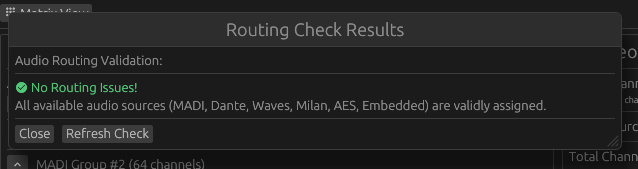
No Issues Found
Section titled “No Issues Found”Clean configuration shows:
✓ No Routing Issues!
”All available audio sources (MADI, Dante, Waves, Milan, AES, Embedded) are validly assigned.”
The dialog includes two buttons:
- Close — Closes the dialog
- Refresh Check — Re-runs the routing validation