
How to License Callie Grams
Activating Your License
Section titled “Activating Your License”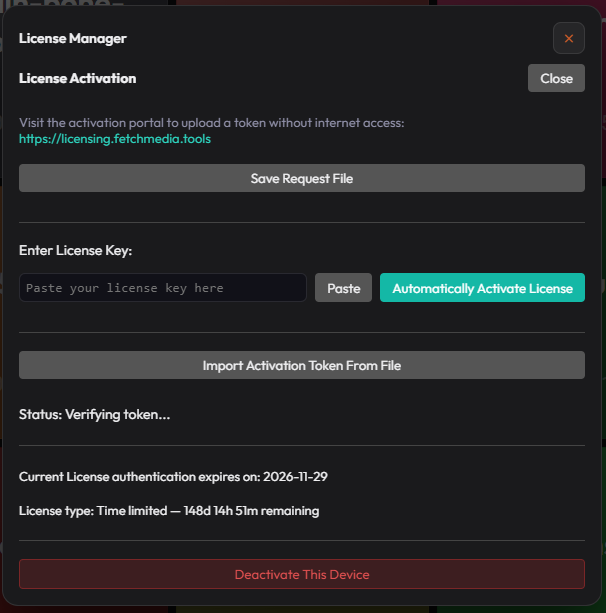
- Open Callie Grams.
- Go to Menu → Help → Manage License.
- Click Enter License Key.
- Paste the key you received after purchase.
- Click Activate.
Callie Grams will validate the key online and unlock the licensed features.
License Key Location
Section titled “License Key Location”Your license key is sent to the email address used during purchase. Check your inbox and spam folder for a message from Fetch Media Tools or Lemon Squeezy.
Offline Activation
Section titled “Offline Activation”If your machine is not connected to the internet, contact Fetch support for an offline activation process.
Transferring a License
Section titled “Transferring a License”Licenses are per machine. To move a license to a new computer:
- Deactivate Callie Grams on the old machine (Menu → Help → Manage License → Deactivate).
- Activate the same key on the new machine.
If you cannot deactivate the old machine, contact support.
Troubleshooting
Section titled “Troubleshooting”- “Invalid license key” — check for typos and extra spaces.
- “No internet connection” — ensure Callie Grams can reach the license server.
- “License already in use” — deactivate on another machine first.