
Matrix View
Alternative view showing all assignments in grid format.
Opening Matrix View
Section titled “Opening Matrix View”Menu → View → Matrix View
(Or keyboard shortcut: Cmd+M / Ctrl+M)
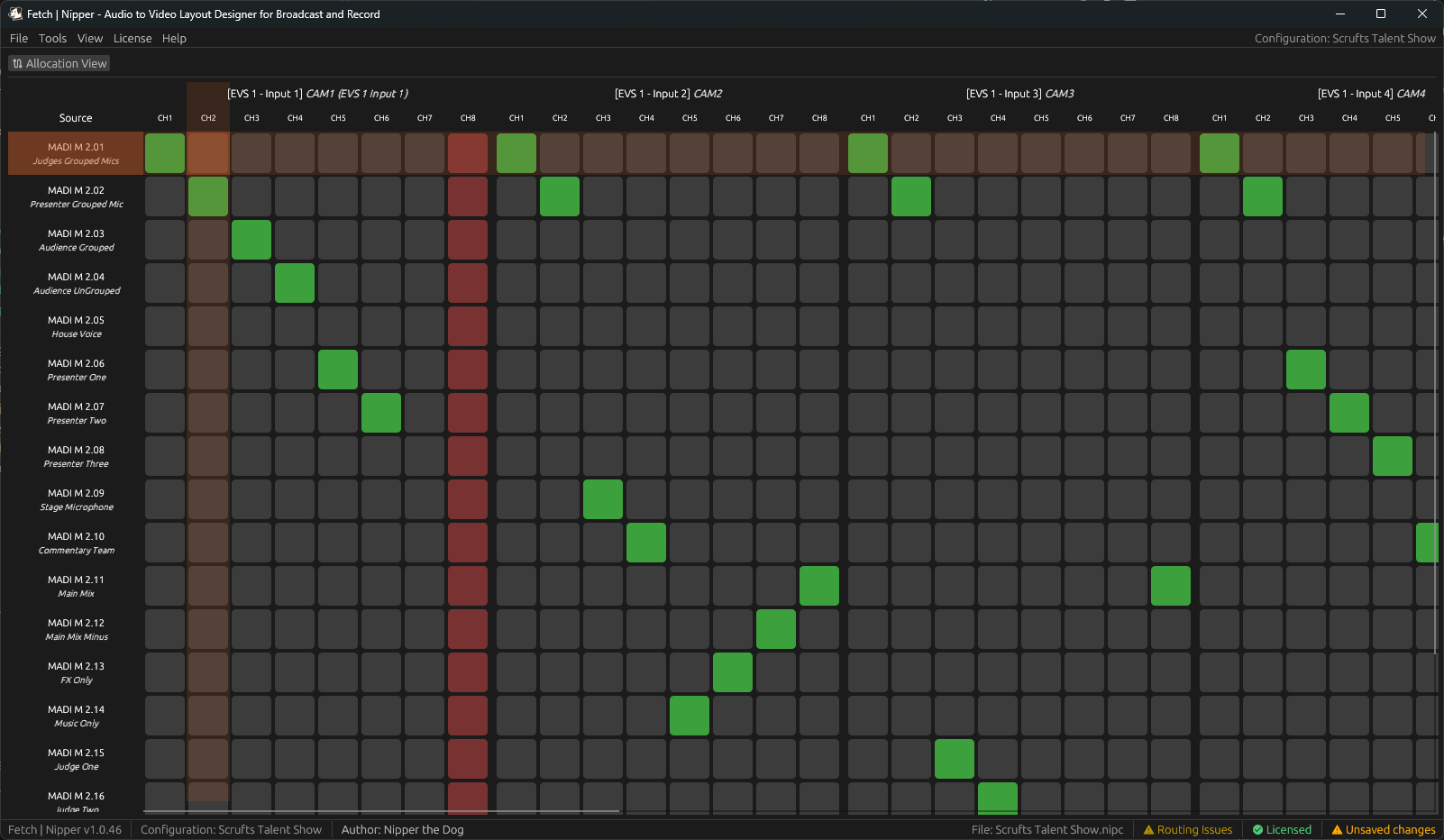
New window opens displaying assignment matrix.
Understanding the Matrix
Section titled “Understanding the Matrix”Rows: Audio sources (each individual channel)
Columns: Video destinations (each video source’s embedded channels)
Cell contents:
- Empty cell: No assignment
- Green: This audio source assigned to this video channel
- Red: Muted assignment (audio assigned but muted in video)
Using Matrix View
Section titled “Using Matrix View”Matrix View is fully interactive.
What you can do:
- Click any cell to assign/mute/clear (cycles through states)
- Verify overall routing design at a glance
- Spot patterns (like sequential assignments)
- Identify gaps in large configurations
- Generate screenshots for documentation
Navigation highlights: As you navigate the grid, orange highlights show crosspoints - making it easy to trace which audio sources connect to which video destinations.
Changes made in Matrix View immediately reflect in the main allocation view, and vice versa.