
Stem Splitter / Vocal Removal
Callie Grams can separate a stereo audio file into stems using an ONNX Demucs model. This is useful for creating karaoke tracks, instrumental beds, or isolating vocals, drums, bass, and other parts.
How it works
Section titled “How it works”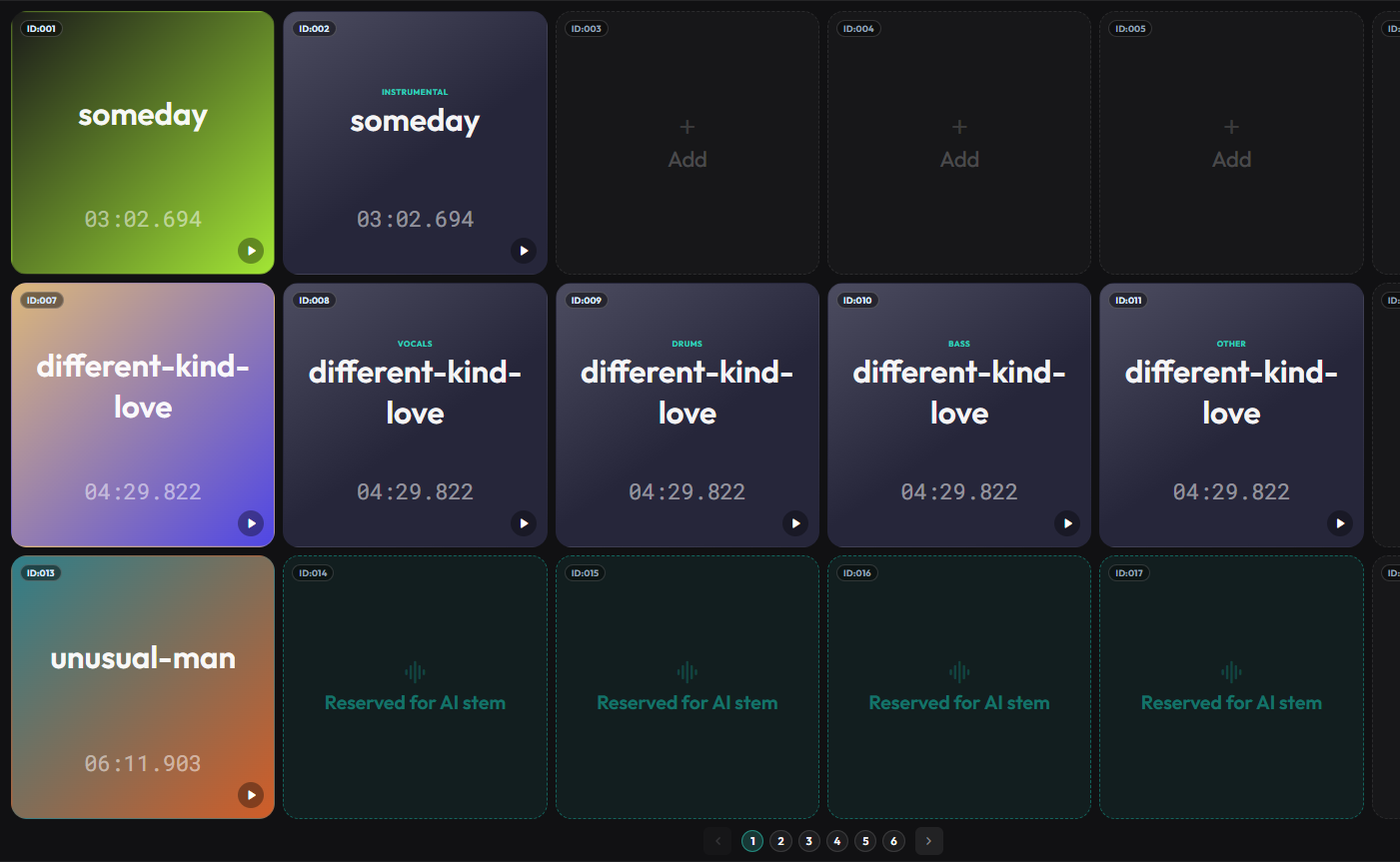
The stem splitter analyses the audio and produces separate files:
- Vocals
- Drums
- Bass
- Other (remaining instruments)
You choose how many stems to generate before the split starts. Callie Grams then creates new clips in empty slots next to the original clip, one clip per stem.
Stem options
Section titled “Stem options”| Choice | Output |
|---|---|
| Instrumental (1 stem) | No Vocals only — everything except the voice. |
| 2 Stems | Vocals + No Vocals. |
| 4 Stems | Vocals + Drums + Bass + Other. |
Starting a stem split
Section titled “Starting a stem split”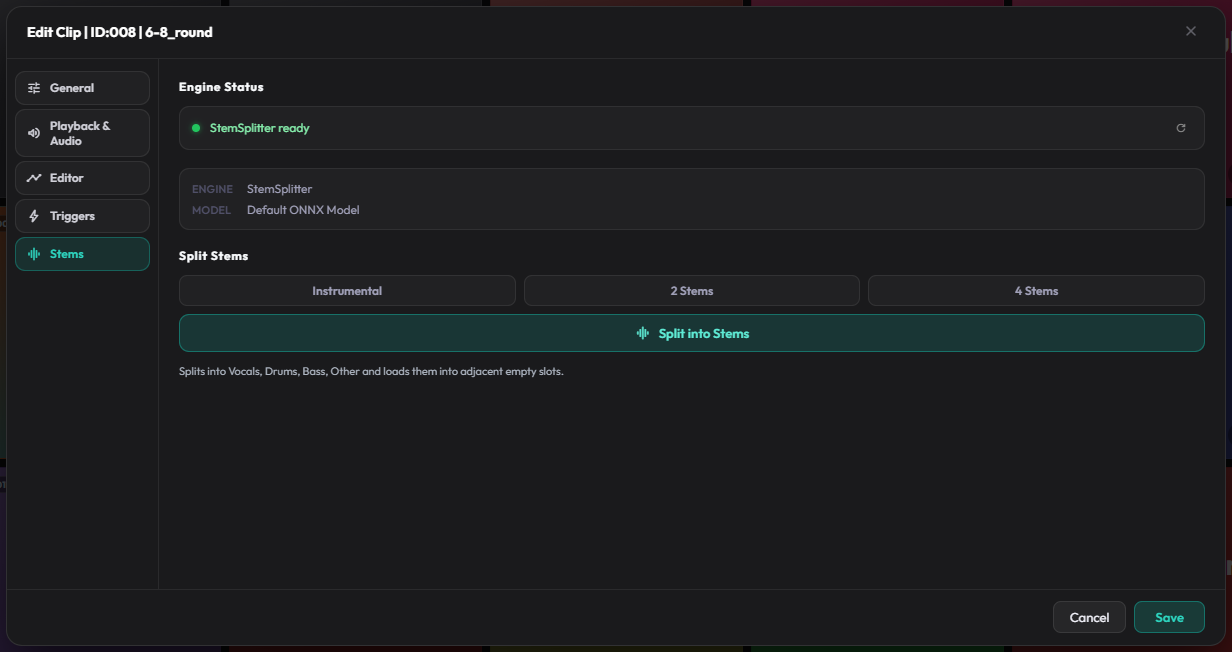
- Add a clip to the grid.
- Open Clip Settings → Stems.
- Choose Instrumental, 2 Stems, or 4 Stems.
- Click Split into Stems.
- Callie Grams adds the job to the AI queue and processes it in the background.
- When complete, the new stem clips appear in the next available slots after the original clip.
The original clip is left untouched.
Stem Queue
Section titled “Stem Queue”Multiple stem jobs can be queued. A Progress button will appear in the header. The Queue window shows:
- Current job progress
- Completed jobs
- Failed jobs
Processing happens locally on your CPU using the ONNX runtime. Speed depends on your CPU and the length of the file.
Callie Grams uses a single bundled ONNX model (htdemucs_ort_v1). There is no model selection or GPU acceleration.
Storage
Section titled “Storage”Stems are stored in Callie Grams’ app data directory under separated_stems/. The original file is preserved and the project references the generated stem files.
Best Results
Section titled “Best Results”- Use high-quality source files (WAV or FLAC preferred).
- Avoid heavily compressed MP3s for critical separation.
- Keep files under 15 minutes to avoid running out of memory.
- Processing time increases with file length.