
Installation & First Run
System Requirements
Section titled “System Requirements”Operating Systems:
- Windows 10 or later (64-bit)
- macOS 11 (Big Sur) or later (Apple Silicon M1/M2/M3/M4 only)
- Linux (x86_64 with modern desktop environment)
Minimum Hardware:
- 4 GB RAM
- 200 MB available disk space
- Display resolution 1280×720 or higher
Recommended:
- 8 GB RAM for complex configurations (100+ sources)
- 1920×1080 or higher display for comfortable viewing
Installation
Section titled “Installation”Windows:
Download the installer from the Fetch website.
Run the .msi installer.
Follow the installation wizard prompts.
Launch from Start Menu: Fetch | Nipper.
macOS:
Download the .dmg disk image.
Open the disk image.
Drag Nipper to Applications folder.
Launch from Applications or Spotlight.
Linux:
Download the appropriate package (.deb for Debian/Ubuntu, .rpm for Fedora/RHEL).
Debian/Ubuntu:
sudo dpkg -i nipper_*.debsudo apt-get install -fFedora/RHEL:
sudo rpm -i nipper-*.rpmLaunch from application menu or terminal: nipper
First Launch
Section titled “First Launch”When you first open Nipper, you’ll see an empty allocation view - a blank canvas ready for your routing configuration.
The interface has two main panels. On the left, you’ll work with audio sources - this is where you add your audio inputs. On the right, you’ll see video destinations, where you add your video outputs with embedded audio.
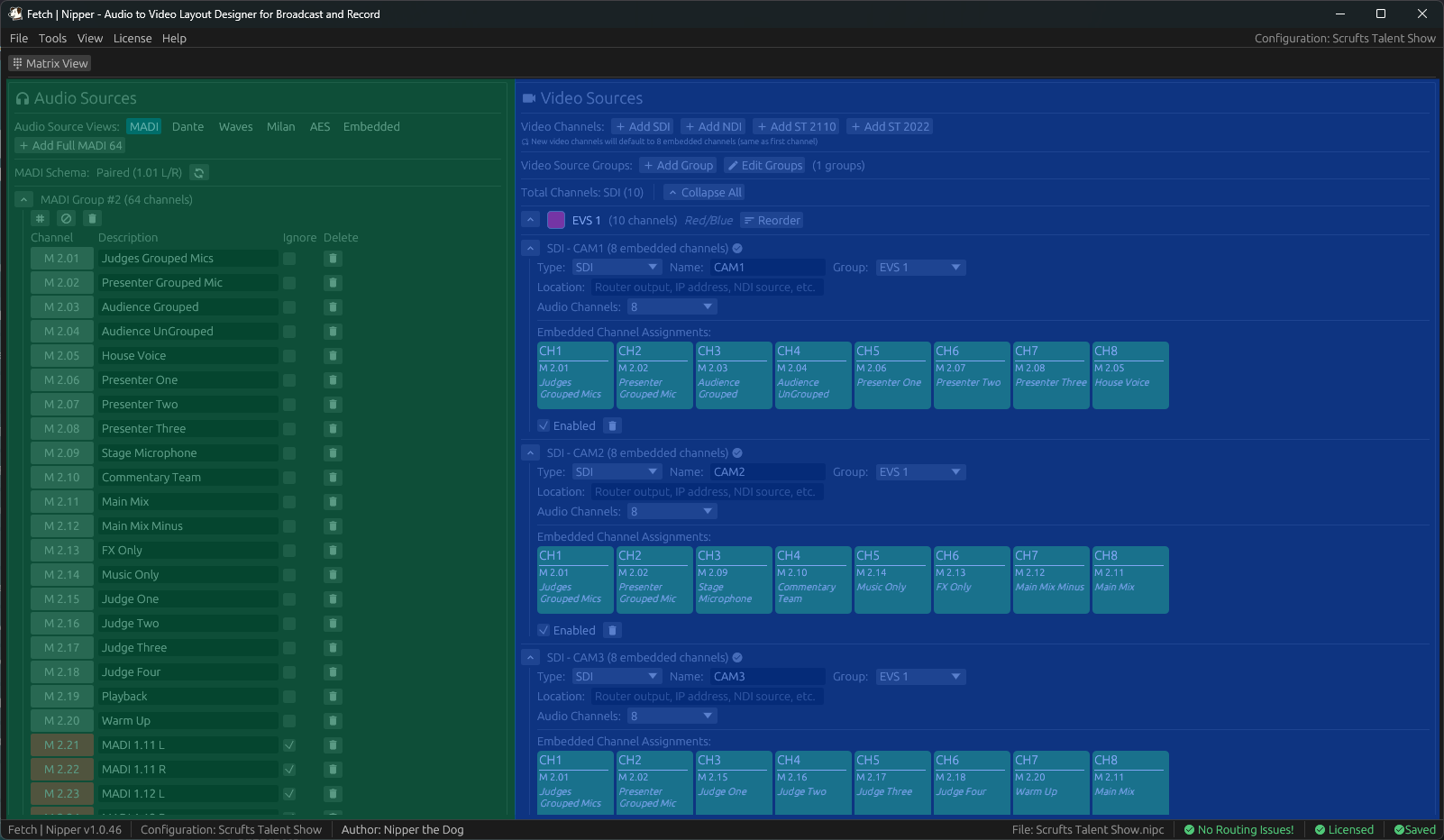
The bottom status bar keeps you informed with three key pieces of information: your configuration status (whether it’s unsaved or shows the file path), Routing Check results showing any issue count, and your license status (✓ Licensed or ⚠ Unlicensed).
Initial Setup
Section titled “Initial Setup”Default Author Name:
Menu → File → Edit Author
Enter your name as the default author for new configurations. This will populate automatically when creating new configurations, though you can change it for individual configurations later if needed.
Theme Selection:
Menu → View → Light Mode / Dark Mode.