
Output Routing
Callie Grams routes every clip to an output. An output is a destination — your headphones, a virtual cable, a Dante channel, or an ASIO device pair.
This page explains how outputs work in each play mode.
Output Letters
Section titled “Output Letters”Outputs are labelled with letters: A, B, C … up to L. The number of available outputs depends on your setting in Preferences → Play Mode → Output Count:
- 3 outputs: A–C
- 6 outputs: A–F
- 9 outputs: A–I
- 12 outputs: A–L
In Single Output mode, only Output A is used.
Output Slots
Section titled “Output Slots”In Default mode, clips on the same output can be assigned to slots. When a slot is set, the button badge shows the slot number plus the output letter in lowercase, such as 1a, 2b, or 3c.
In Single Output mode, the badge shows only the output letter, such as A or B.
Slots help you organize stacked clips on the same output and make it clear which clips are sharing a destination.
Default Mode Routing
Section titled “Default Mode Routing”In Default mode, assigned clips route to their chosen output and unassigned clips auto-distribute:
- Open Clip Settings.
- Under Playback & Audio, choose an Output.
- Optionally choose a Slot.
Clips with no output assigned are placed on the first free output when triggered; if every output is busy they fall back to Output A. If you’d rather unassigned clips be blocked until patched, enable Require output assignment in Preferences → Play Mode.
Multiple clips can play on the same output at the same time — they mix together. This is useful for music beds with stings on top, or multiple effects layered together.
Per-output exclusivity:
In Preferences → Play Mode → Outputs, any output can be marked Exclusive. An exclusive output holds only one clip at a time — triggering a new clip on it replaces the current one. Each exclusive output also has a Stop / Crash stop toggle: Stop fades the outgoing clip out; Crash stop cuts it immediately. This prevents long music beds from blocking new clips on other outputs.
Single Output Mode
Section titled “Single Output Mode”Every clip routes to Output A. This is the simplest mode and is ideal when:
- You’re using one virtual cable to feed OBS or a streaming app.
- You’re running a simple soundboard with one destination.
- You’re evaluating Callie Grams for the first time.
Options:
- Quick-fire all — zero fade-in on every trigger.
- One at a time — stop all playback before each trigger.
Assigning Outputs to Physical Devices
Section titled “Assigning Outputs to Physical Devices”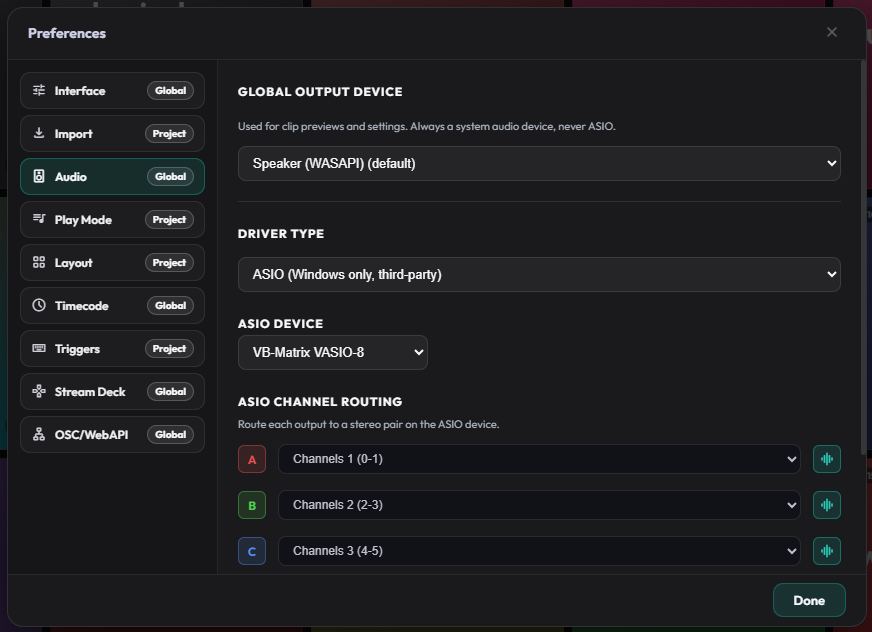
Outputs are mapped to audio devices in Preferences → Audio:
- Global Output Device — the system audio device used for clip previews and as the default for every output. Set this to your headphones or speakers.
- Per-Output Routing — assign each output letter (A–L) to a different soundcard, or leave it on Follow global to use the Global Output Device.
On Windows you can also choose ASIO as the driver type and route each output to a stereo pair on an ASIO device.
If a saved device is no longer present (interface unplugged, DVS not running), it stays in the dropdown labelled (unavailable) so you can see what the project expects and reselect it when it returns.
Multi-channel Device Mode
Section titled “Multi-channel Device Mode”In Preferences → Audio → Output Type, choose Multi-channel device (e.g. Dante Virtual Soundcard) to route every output through one device, each output on its own channel pair — the natural fit for a 16- or 64-channel DVS instance or a multi-channel interface.
- Pick the device from the Multi-channel Device dropdown (channel counts are shown, e.g.
Dante Virtual Soundcard (x64) (64ch)). - Route each output letter to a channel pair in the Channel Routing list, with per-output device overrides if you need an exception.
- Windows users with a third-party ASIO device get the equivalent ASIO (Windows only, third-party) option.
Dante Virtual Soundcard
Section titled “Dante Virtual Soundcard”Callie Grams can route to Dante network destinations via Dante Virtual Soundcard (DVS).
Windows:
- DVS can be configured as WDM or ASIO.
- Each enabled transmit pair appears as a separate output device in Callie Grams.
macOS: DVS transmit channels appear natively as CoreAudio devices — no extra configuration needed.
Linux: Dante Virtual Soundcard is not available for Linux.
Output Labels
Section titled “Output Labels”In Preferences → Play Mode, you can give each output a descriptive label, such as:
- A: Main Mix
- B: Music
- C: SFX
- D: VO
Labels appear in Clip Settings and help operators keep track of routing.
Identifying Outputs
Section titled “Identifying Outputs”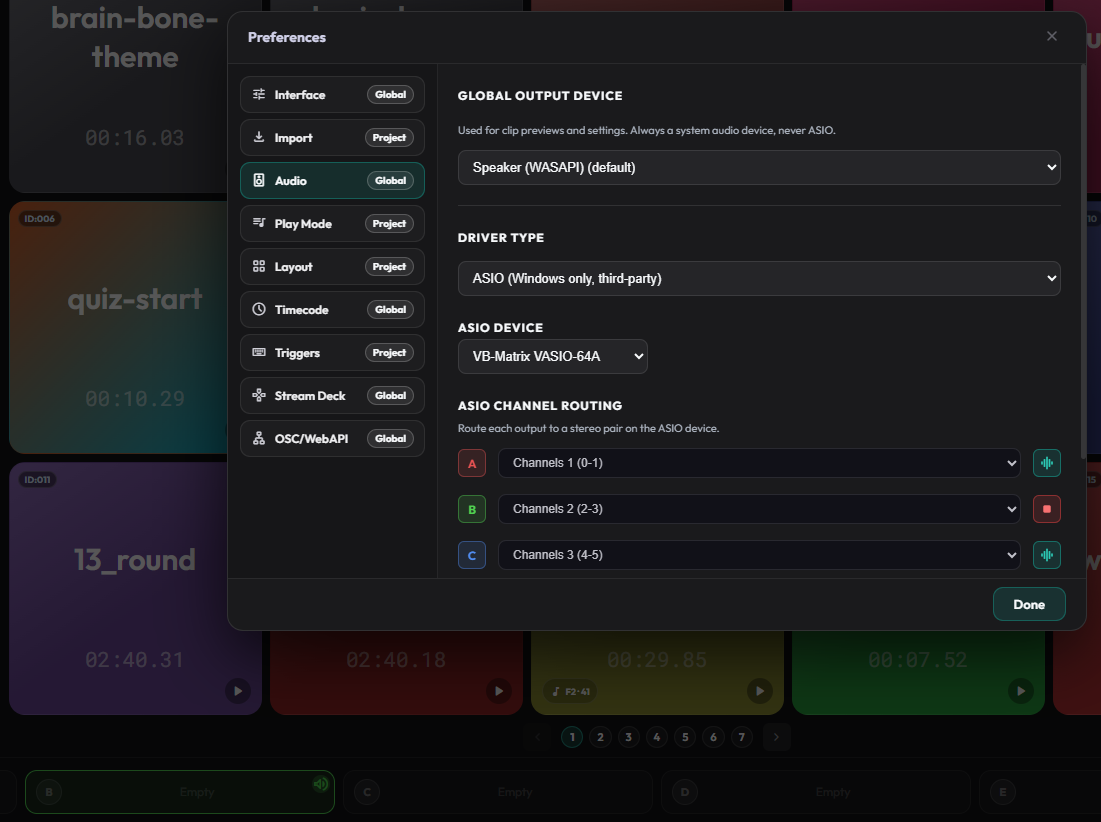
Callie Grams can play a short line-up tone through any output so you can check cabling and routing without triggering a clip.
From the cart strip:
- Right-click an output cell in the cart strip.
- Choose ID Output.
- The output plays the GLITS line-up tone and the cell highlights until the tone stops.
- Choose Stop ID from the same menu to cancel it early.
From Preferences → Audio:
- In per-output routing or ASIO channel routing, click the tone button next to an output letter to play the line-up tone through that output.
- Click the same button again to stop it.
This is useful in broadcast and live environments for quickly confirming which physical destination each output letter is connected to.
You can also fire a test tone per output from the Live Output View — right-click an output column and choose Start Test Tone.
Common Routing Setups
Section titled “Common Routing Setups”Simple streaming:
- Mode: Single Output
- Output A: VB-Cable (feeds OBS)
- Global Output Device: your headphones
Music + SFX separation:
- Mode: Default
- Output A: Main Mix / stream
- Output B: Music only
- Output C: Sound effects only
Live show with exclusive channels:
- Mode: Default
- Exclusive outputs: enabled per output (with Stop or Crash stop)
- Output count: 6 or 12