
Working with Groups
Groups organize related sources for clarity and better exports.
Video Source Groups
Section titled “Video Source Groups”Video groups collect related video sources.
Purpose:
- Organize by function: cameras, EVS machines, graphics, ISO feeds
- Visual distinction via color coding
- Clearer exports (grouped sources appear together)
Creating a video group:
Menu → Groups → Add Video Group
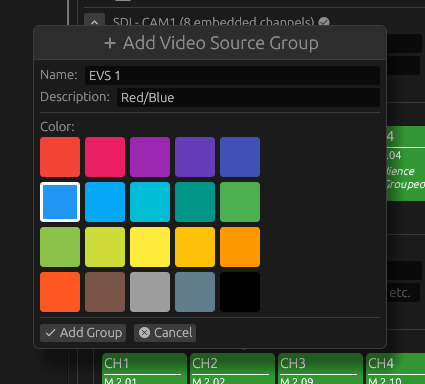
Dialog fields:
- Group Name: Short identifier (e.g., “EVS Machines”, “Camera Feeds”)
- Description: Optional detail about the group’s purpose
- Color: Choose from 20-color palette
Color palette:
20 predefined colors optimised for:
- Visual distinction (no two colors too similar)
- Accessibility (colorblind-friendly where possible)
- Print clarity (distinct in greyscale)
Colors appear:
- Group header background
- Exports and reports
- Matrix view grouping
Assigning video sources to groups:
During video source creation, choose group from dropdown.
To change later, click the group button on the video source to choose a new group or “None”.
Audio Source Groups
Section titled “Audio Source Groups”Audio sources organize by group number (major number).
Example: MADI channels 1.01 through 1.64 belong to “MADI Group 1”.
Changing audio group numbers:
Click the channel button to change the group number.
Enter new group number (must be valid for that audio type).
The channel moves to the new group section.
Audio group operations:
Click the buttons on the audio group header (e.g., “MADI Group 2”).
Options:
- Delete Group — Removes all channels in group
- Ignore All — Ignores every channel
- Unignore All — Unignores every channel
- Renumber Group — Changes entire group to new number (advanced)
Managing Groups
Section titled “Managing Groups”Group management dialog:
Lists all video groups with:
- Group name
- Description
- Color swatch
- Member count (video sources in this group)
- Edit button (rename, change description, change color)
- Delete button (removes group, keeps video sources)
- Reorder handles (drag to change display order)
Editing groups:
Click Edit button for specific group.
Modify name, description, or color.
Changes apply immediately.
Deleting groups:
Click Delete button.
Video sources in deleted groups remain but become ungrouped.
No assignments are affected.
Reordering groups:
Drag group rows by handle to reorder.
Display order affects:
- Right panel visual layout
- Export organization
- Matrix view grouping order
Changes persist in configuration file.
Group Collapse/Expand
Section titled “Group Collapse/Expand”Click group header to collapse or expand.
When you collapse a group, it shows just the header with a member count, hiding the individual video sources to reduce visual clutter while you work on other groups. The expand state persists during your session but resets when you restart the application.